
Greetings dear readers and Happy New Year! My latest blog post outlines how using Parallels RAS in conjunction with our new Fix My Session tool removes all of the hassle of managing user profiles in your End User Computing environment. How exactly do these solutions do that? Read on…
Parallels RAS Handles All the Heavy Lifting Of Deploying and Configuring FSLogix User Profiles For Your EUC Environment
In my previous blog article about Parallels RAS, I discussed all of the amazing ways in which it can extend the capabilities of a traditional Remote Desktop Services environment via the additional value added features it includes. Amidst other incredible improvements around automatic certificate management, better session brokering, integrated universal printing and scanning, MFA, and hybrid public/private cloud support, I also touched briefly on Parallels RAS’s native FSLogix support. Let’s now dive into those features in greater depth.

Enhancement 1: Centralized Deployment of FSLogix Agents
When compared to deploying FSLogix into a standard Remote Desktop Services or Azure Virtual Desktop environment on your own, Parallels RAS makes FSLogix deployments trivially easy. In RDS or Azure Virtual Desktop, you remain solely responsible for finding a way to deploy the FSLogix agent components to all of your session hosts. In contrast, Parallels RAS automates the installation of FSLogix components across RDS and Azure Virtual Desktop session hosts directly from the central Parallels RAS Management Console. Your deployment options inside RAS include an online download, network share, or push option from the Connection Broker, and regardless of approach, all can be accomplished in mere minutes.
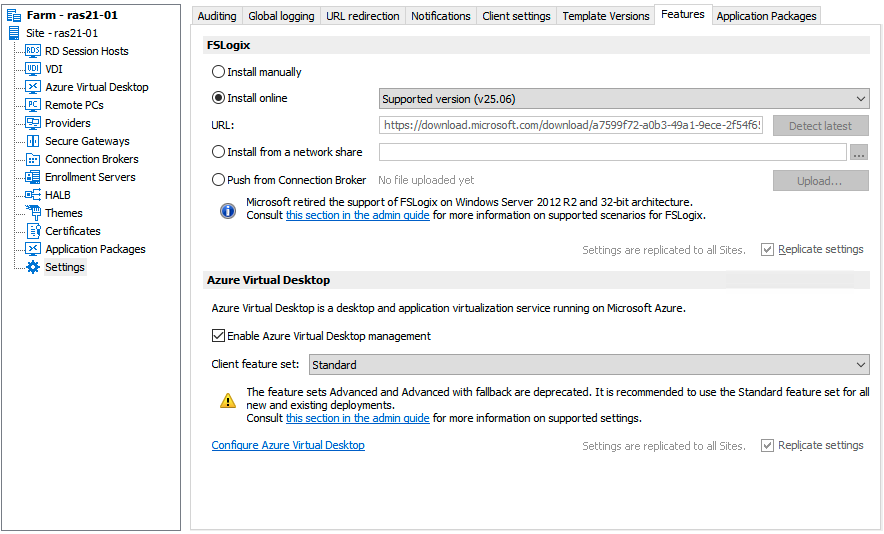
Enhancement 2: Simplified Configuration and Ongoing Management
If you roll out FSLogix by yourself in RDS or AVD, you’re responsible for controlling how it operates by using some combination of Group Policy Objects, registry tweaks, or scripts. In contrast, Parallels RAS fully integrates all FSLogix Profile and Office Container settings (including Cloud Cache, advanced logging, and exclusions) directly within its central RAS Console. Most admins I know still appreciate a nice clean GUI where they can tweak things centrally as opposed to running to ChatGPT for some “PowerShell and Pray.” Better yet, when reviewing FSLogix settings to enable/disable certain functionality, the Parallels RAS developers have very conveniently added explanations as to what each setting does directly in the interface. This is much better for hunting down what a setting controls in the very scattered Microsoft online docs portals.
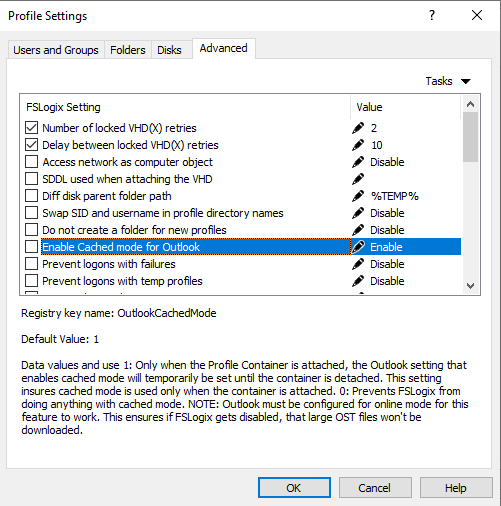
Enhancement 3: Easier Updates and Upgrades to New FSLogix Versions
When you manage FSLogix by yourself, you and you alone are responsible for handling updates and upgrades to new FSLogix versions. Contrast this with Parallels RAS, which orchestrates this process for you. Once RAS installs FSLogix on its managed session hosts, you can upgrade to a newer version (or downgrade to an older one) by simply selecting that version from the dropdown menu or by using a custom URL / network share. RAS will automatically handle the upgrade/downgrade, at the site level, host pool level, or even at an individual session host level. There are also options to perform these upgrades via PowerShell for more granular control should you wish.
Parallels RAS Makes Deploying, Configuring and Updating FSLogix Effortless. RDPSoft’s Fix My Session Then Picks Up Things From There.
OK, since I’ve now discussed how easy Parallels RAS makes deploying, updating, and configuring FSLogix, what else could you possibly need for user profile management in your EUC environment? Well, as any EUC admin can tell you, when FSLogix works well (probably 70 to 80% of the time), it is an absolute joy, and it is much better than legacy profile technologies like roaming profiles or UPDs. However, Windows updates, app updates, and even occasional FSLogix updates can introduce instability into how FSLogix operates, leading to the dreaded locked FSLogix profile disk and other problems. And when FSLogix goes bad, it can be a nightmare for your support desk.
When FSLogix goes south, users get temporary profiles when signing on to Parallels RAS and their apps will not be able to locate their work files and preferences. This leads to panicked calls to your IT help desk, with a help desk technician needing to clean up multiple user sessions and manually unlocking that user’s FSLogix VHDX disk on the file server, or in Azure File Shares. This results in increased work for your help desk, AND results in lost productivity for the team member with the locked profile.
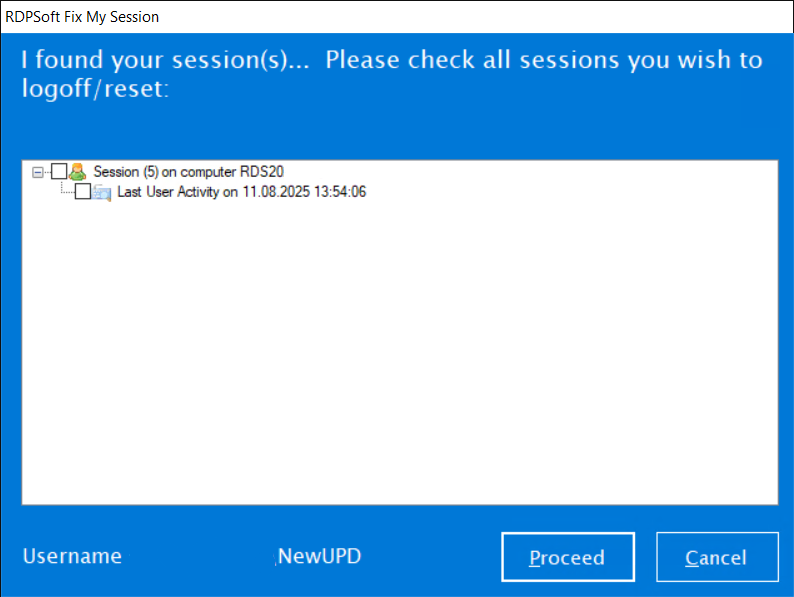
RDPSoft’s Fix My Session solves these problems for the employee automatically so they don’t have to bother your support team with a ticket, allowing them to resume their work nearly immediately. Moreover, if the user has a hung Parallels RAS session unrelated to FSLogix, Fix My Session also allows them to safely end that hung session on their own with the power of its agent-based delegation, again saving your help desk’s precious time. Here’s how:
Fix My Session Automatically Resolves Locked FSLogix Profiles
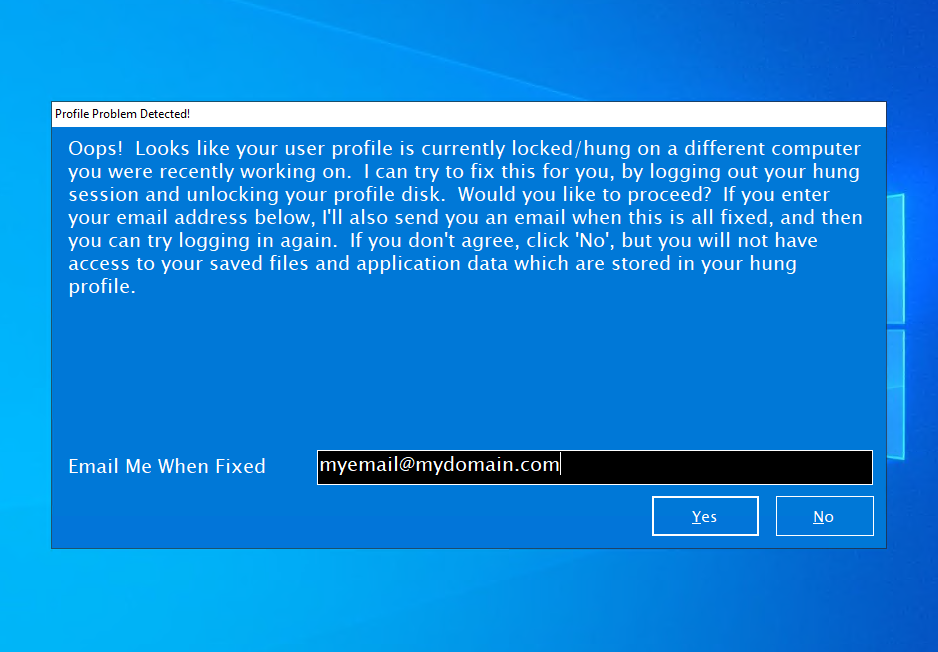
Fix My Session automatically detects FSLogix profile loading failures and VHD/VHDX lock issues in Parallels RAS environments. It notifies users who are logged in with temporary/local profiles, and after optionally obtaining their permission, logs out any stuck sessions (if present) still connected to their FSLogix disks, unlocks any profile disk file handles on shares (including Azure Files) as required, cleans up temporary profiles, and emails users when everything is resolved, prompting to log them back in again.
Fix My Session Provides Self-Service Logouts for Other Hung or Frozen Sessions
Fix My Session is Fully Compatible with Parallels RAS
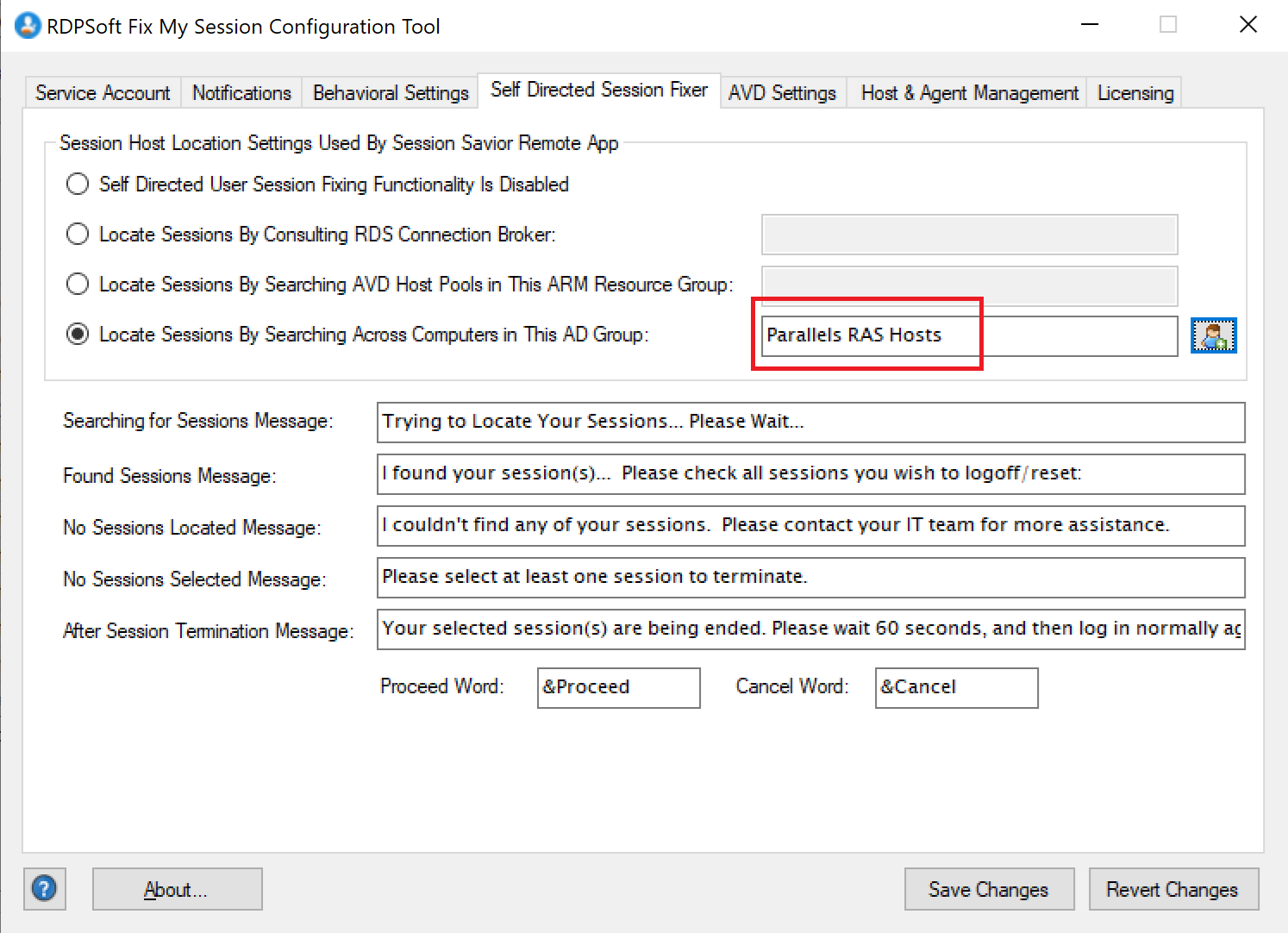
Fix My Session explicitly supports Parallels RAS alongside other EUC platforms, integrating seamlessly to detect and fix FSLogix profile problems and provide locked session remediation in multi-session host deployments of RAS, whether those hosts are on-premises or part of a managed AVD environment. All a Parallels RAS admin needs to do is place the RAS hosts into a special Active Directory group and then register that group with Fix My Session so it knows which hosts to monitor for session and profile disk problems.
Fix My Session Reduces Workload for Parallels RAS Admins and Help Desk Staff, Buying Back Their Time and Letting Them Focus on More Important Projects
Fix My Session combines profile and session self-service management tools with specialized automation, detailed logging, and other customizable behaviors, effectively complementing Parallels RAS’s robust FSLogix features by handling runtime issues that the Parallels RAS Console alone does not automatically detect or remediate for the end user.
Interested in Learning More About Parallels RAS or Fix My Session or Seeing A Demo?
Please reach out to the RDPSoft sales team via this contact form and they will be happy to assist you.

Leave a Reply