
Greetings dear readers… It’s been a while since I’ve blogged about Microsoft doing dumb@$$ Microsoft stuff, but sadly, it’s time for a reprise… Hat tip to my client and friend Chris M. who first brought this to my attention.
The latest demonstration of this dumb@$$ery comes in the form of Microsoft’s April security update (KB5083769) for Windows 11 operating systems. In Microsoft’s infinite wisdom, they decided to break all previous workflows of what the user sees when they launch an RDP file to make a connection to an individual RDS server, or to a full RDS deployment (e.g. via gateway and/or broker).
While I understand that there have been some instance of malware authors and APTs luring users to open RDP files to steal credentials and exfiltrate data, Microsoft’s “cure” is worse than the disease.
Below is my analysis of what they’ve done, related workarounds (plus a free “fixer” utility we wrote to help you), and longer-term steps to consider taking with your RDS deployment.
What the End User Sees After the KB5083769 Update
Immediately following the Windows update, the first time the user tries to launch any type of RDP file, they immediately encounter this scare dialog:
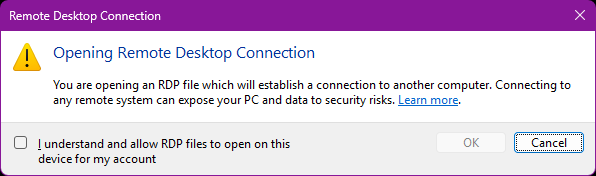
Not horrible in and of itself, but enough to frighten an end user and make them question whether or not they should proceed with connecting to work resources. If they check the “I understand” box and proceed with “OK,” Microsoft adds a registry value under HKEY_CURRENT_USER (we’ll talk about this in a second) that prevents the user from ever seeing this dialog again.
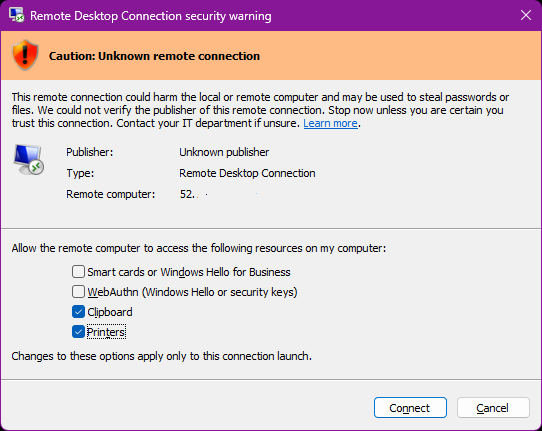
However, it’s the second dialog that is the doozy and that creates a nightmare for admins that are supporting RDS deployments. The new dialog displays yet another scare screen, and even if the RDP file the user downloaded is signed via RDWeb via the certificates associated with the connection broker, there still are “verification” warnings in place. ALSO, this dialog forces the user to explicitly ENABLE any remote resources they wish to use in the RDP session, such as USB devices (printers/scanners) and even the DAMN CLIPBOARD!!! By default, all of these resources are disabled, and if the user doesn’t click them EVERY SINGLE TIME moving forward, they will have broken functionality (no copy/paste, no printing, etc) that will make them flood your admin teams with calls. While I understand that clipboard or USB access can be used by attackers to exfiltrate data, by ignoring the resource settings supported that are embedded in the RDP file itself, Microsoft has caused a massive issue for techs supporting RDS deployments.
Solutions and Workarounds
The immediate workaround to stop the bleeding here and make Windows 11 revert to its previous behaviors when opening RDP files is to set two registry keys:
To Disable the Initial Scare Screen for the Current User:
Add a new DWORD value called RdpLaunchConsentAccepted to the HKEY_CURRENT_USER\Software\Microsoft\Terminal Server Client registry key and set it to 1.
To Disable the Secondary Scare Screens When Any User Launches an RDP File, and Make Sure That Default Resources (e.g. clipboard, drives, printers/scanners/cameras) Are Enabled Based on Stored RDP File Values:
Add a new DWORD value called RedirectionWarningDialogVersion to the HKEY_LOCAL_MACHINE\SOFTWARE\Policies\Microsoft\Windows NT\Terminal Services\Client registry key and set it to 1.
If your organization controls your end user devices via Intune or GPO, you can push these registry values out that way. If you DO NOT control client devices (e.g. if you are publishing a SaaS application to your customers), this is a bigger problem, as you will have to get your users to run scripts or fixer programs themselves to remove these scare screens and specifically the “auto-disabling” of resources in the second RDP scare screen. To that end, we’ve written a quick fixer utility program to help you by setting the above registry keys.
Windows 11 RDP Warning Fixer Applet
Below are links to two different versions of a fixer program that enables to the two registry values mentioned above. We have digitally signed this utility so that it will run without a SmartScreen or Windows Defender warning when the user launches it. If you execute it with a “/q” flag, it will complete without acknowledging the fix to the user via a message box.
Version 1 (to be run by users manually):
Download Win11RDPWarnFix.exe here.
This version explicitly prompts for admin UAC elevation if the user is running with standard user rights, because the second registry value requires admin rights in order to be set (as it exists under HKLM in the registry). This is yet again a DUMB DUMB oversight by Microsoft as it prevents the disabling of the warning screens by standard, non-admin users unless they elevate.
Version 2 (to be executed via GPO or Intune with elevated SYSTEM or Administrator rights):
Download Win11RDPWarnFixGPO.exe here.
This version DOES NOT prompt for elevation, as it assumes that it will be run under the context of an elevated user or system process (such as being pushed out via GPO or Intune). Use it with the /q flag to suppress the confirmation message box once it has run.
Important Note: This utility is provided free of charge and with no warranty, either express or implied. Please test it in your environment first before rolling it out to users – RDPSoft will not be liable for any bugs, incorrect use or misuse of this utility – it is provided solely as a convenience to organizations around the globe running Remote Desktop Services. Users should also be independently educated about the dangers of opening RDP files from untrusted sources, especially if these warning banners are suppressed.
Longer Term Solutions
Microsoft has made it clear in its writeup that the above registry tweak workarounds may not be honored in future Windows 11 releases or security updates, so let’s now discuss more robust fixes:
Step 1 – If running a full RDS deployment, make sure you have correctly set up signing certificates on your brokers and gateways
This should be a given, as your users would have received other warnings/multiple prompts to date even before this April 2026 security update.
Step 2 – If you are not running a full RDS deployment, obtain a code signing certificate from a trusted Certificate Authority
Once this is done, manually sign your RDP files using the rdpsign.exe tool as described here, and then re-deploy them to end users who are connecting to your session hosts via manual RDP files. To learn more about this utility, click here.
Step 3 – Make the end user’s client recognize the certificate of the signed RDP files from the connection broker/RDWeb as valid
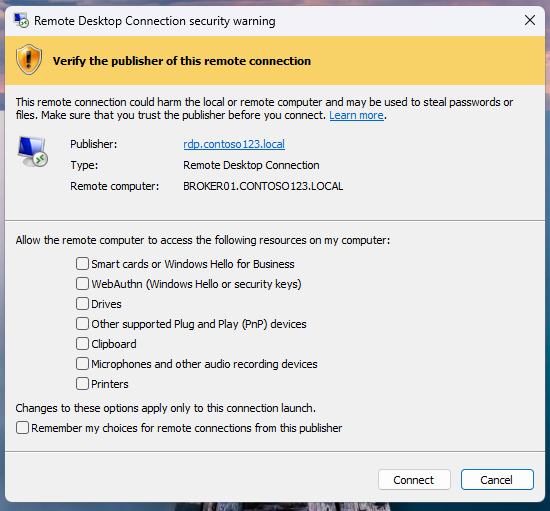
If this step is left out, and you have not disabled the scare warnings via the registry tweaks above, a scare banner will still be displayed telling the user to verify the publisher of the RDP file, and will still require them to manually check all resources they want to enable (e.g. clipboard, drives, USB devices, etc) every time they launch the RDP file, unless they tick the “Remember my choices for remote connections from this publisher” option. E.g. it will still look something like this:
Here’s an example of how to approach this if you use GPOs to control client devices:
First, look up all of the certificate thumbprints related to RDS on your Connection Broker via PowerShell like so:
Get-RDCertificate -Role RDPublishing -ConnectionBroker “YourConnectionBrokerFQDN” | Select-Object -Property *
Get-RDCertificate -Role RDWebAccess -ConnectionBroker “YourConnectionBrokerFQDN” | Select-Object -Property *
Get-RDCertificate -Role RDRedirector -ConnectionBroker “YourConnectionBrokerFQDN” | Select-Object -Property *
Get-RDCertificate -Role RDGateway -ConnectionBroker “YourConnectionBrokerFQDN” | Select-Object -Property *
Then:
1.) Open the Group Policy Management Console (GPMC) on a domain controller or management workstation.
2.) Create a new GPO (or edit an existing one) and link it to the OU containing your client computers (not the RDS servers).
3.) Edit the GPO.
4.) Navigate to:
Computer Configuration → Policies → Administrative Templates → Windows Components → Remote Desktop Services → Remote Desktop Connection Client
5.) Double-click the policy: Specify SHA1 thumbprints of certificates representing trusted .rdp publishers
6.) Set it to Enabled.
7.) In the Options section, enter all relevant certificate thumbprint(s) in the text box as a comma-delimited list.
8.) Click OK / Apply.
9.) Run gpupdate /force on clients (or wait for background refresh). Rebooting clients ensures the policy applies cleanly.
There are also mechanisms to do this with Intune, although they are more complicated, and I will touch upon them in a follow up blog article. Again, though, that doesn’t help companies using RDS to deploy SaaS apps, as they do not control their end users Windows 11 devices. If Microsoft does not effectively rollback this Windows 11 security update, or let the registry tweaks above stay in place more permanently, SaaS over RDS companies will have to develop a mechanism to update the Remote Desktop Connection Client policies with new certificate thumbprints every time those certificates are renewed, which becomes more and more often as new rules require updating SSL certificates much more frequently, all the way down to a mere 47 days in 2029.
Conclusions
I can’t put it any more plainly than this – this was a very dumb and inept approach by Microsoft in an attempt to better secure RDP, and this is coming from someone who actually wrote a book on securing RDP. The warning screens only serve to scare and confuse users – many admins are reporting on Reddit that end users are thinking their systems actually were hacked as a result of these screens. The deliberate disabling of resources like clipboard, drive, printers, and USB device access unless a lay user actually remembers to enable them EVERY TIME they start an RDP connection is ridiculous, and it will create massive time suck for your admins and your help desk.
Also, Microsoft failed to envision scenarios where end users use RDP resources not tied to their organization, such as running SaaS over RDP apps (many of these companies are also our clients at RDPSoft, so we feel their pain acutely).
At a minimum, I request that Microsoft NOT disable the registry fixes outlined above any time soon, until they have time to go back to the drawing board on this April Security Update. There are better ways to detect “newish” RDP files that the Remote Desktop Client has never touched before (MSTSC keeps a history of brokers and session hosts it has connected to in the past – which would be a good place to start, Microsoft) and display a one-off reminder for new files that they should only connect over RDP if they trust the vendor/organization that has published it, but NOT auto disable all of the resources like clipboard access.
I will write a follow up article soon with more mitigation approaches (e.g. via Intune and for devices outside of direct organizational management, such as SaaS over RDP apps) as I have time to do more testing.
Feel free to comment below with any other strategies you have deployed with success to overcome this problem, or touch upon anything I may have overlooked, and I will publish them and/or incorporate them into this blog article.

You are right on the money with this. It is total security theater, and they could have just warned about an .rdp file that was never encountered before. I really hope they leave this workaround in place forever!
Hi Andy,
I found that the 2nd warning dialog (RedirectionWarningDialogVersion) does *not* appear if the .rdp file is signed.
I signed it using `rdpsign.exe /sha256 …` and put the SHA256 into the “SHA1-fingerprints…” group policy. But I don’t know if sha256 (vs sha1) is the fix. (The warning could also be triggered by a combination of properties in the .rdp file. I’d be happy to send you my working file.)
However, the first warning dialog is still shown by default / initially.
Cheers, Mathias
Mathias,
From what I’m hearing, the group policy for certificate thumbprints (discussed above) is the lynchpin in suppressing this second dialog, whether you do it manually via rdpsign.exe OR if the Connection Broker/RDWeb is signing the files. However, this is a horrible design flaw, as many companies host SaaS apps over RDP and do not have the ability to push a local group policy change to their customer computers via GP or Intune. Not to mention, SSL cert expirations are getting shorter and shorter, and it will be easy to miss pushing a local client GPO update with new thumbprints every time you get a new SSL certificate (even if you can push that update). Again, dumb, dumb, dumb on Microsoft’s part.